

Build your first factory
Takeaways:
- You set up a factory in the Tessl web app: connect GitHub, pick a repository, and turn the factory on. Only an organization admin can do this the first time.
- The factory is a set of loops that turn an issue labeled
tesslinto a pull request and answer feedback on it. - On a public repository, the factory only acts on comments and reviews from the repository's maintainers.
- You're done when you've merged one pull request the factory opened.
An issue sits in your backlog until someone picks it up, writes the change, answers the review comments, and gets CI green. A factory hands that loop to agents that work in your repository: you label an issue, and a pull request comes back for you to review and merge.
This page takes one repository from no factory to one merged pull request. For what loops, triggers, and runs are, see the Automations overview.
Before you start
You need:
- A Tessl account, as an admin of your Tessl organization. Setting up a factory creates environments for the organization, so only an admin can do it the first time. Other members see Ask an admin to set up your factory.
- A GitHub repository with Issues turned on. GitHub turns Issues off on a new fork. Turn them on in the repository's Settings, under General, then Features. To practice first, fork the sample repository tessl-carnival, which Tessl offers during setup.
- Permission to install a GitHub App on the account that owns the repository. If you don't own the GitHub organization, GitHub sends your request to an owner, and setup waits until they approve it.
- Credits. Every run uses credits, and each Code Review round costs 50. See Tessl Platform Pricing. A run doesn't start when your organization has no credits left, which can look like nothing happened.
A GitHub account can be connected to one Tessl organization at a time. If the account that owns your repository is already connected to another organization, setup shows That GitHub account is already connected to another Tessl organization. Set up the factory in that organization instead. Or, if you no longer need that connection, uninstall the Tessl App from the account on GitHub, under Settings, then Applications, and install it again from this organization.
In the EU region, issues come from GitHub only. Linear isn't available there. See Using the EU region.
What you're setting up
The factory works on your repository through 2 GitHub Apps:
- Tessl App: the factory's agents act through it. It reads the code, issues, and pull requests in the repositories you pick, pushes changes to
tessl/branches, opens pull requests, and comments on issues and pull requests. - Tessl Review: runs Code Review. It's a separate app so the factory never reviews its own work. On your pull requests it shows as Tessl Reviewer.
Turning the factory on creates these loops on the repository:
- Implement ticket: turns an issue labeled
tesslinto a pull request. - Shepherd PR: answers comments and reviews on the factory's pull requests, and on a private repository also fixes failing checks.
- Follow ticket changes: stops work when you take an issue back.
- Merge conflict sweep, on a private repository only: resolves merge conflicts on the factory's pull requests.
The loops live in Tessl, not in your repository. Setup doesn't commit anything.
On a public repository, anyone on GitHub can comment, so the factory listens only to people with the maintain or admin role when you turn it on. Their comments and reviews start Shepherd PR. Comments from anyone else, reviews from Tessl Reviewer, and check results don't start a run. Setup also leaves out Merge conflict sweep, so a public repository gets 3 loops. Adding the tessl label works as usual, because GitHub already limits who can add labels. For more, see Best practices for Tessl Factory on public repositories.
1. Start setup
- New to Tessl: sign up at tessl.io and fill in your profile. On Build your software factory., choose Use the browser.
- Already using Tessl: on your organization's Home, choose New factory. You can also use the + next to Factories in the sidebar.
To set up from your coding agent instead, see Set up from your coding agent.
2. Connect GitHub
Tessl shows Connect to GitHub when the Tessl App isn't installed yet. Choose Install on GitHub, and on GitHub pick the repositories the factory may work on. Include the one you're setting up.
If you see Installation requested, a GitHub owner of the account has to approve the install. Come back once they have.
If your organization already uses the Tessl App on a different GitHub account, such as your company's, and your repository belongs to another one, such as your personal account, connect that account too. Open your organization's Settings, then Integrations, then GitHub, and choose Install Tessl App.
3. Pick a repository
On Pick a repository, find your repository and choose Continue. If it isn't listed, choose Manage repository access to give the Tessl App access to it. This only reaches the GitHub accounts already connected, so connect the repository's account first, as in Connect GitHub.
To use the sample instead, choose Fork on GitHub on the tessl-carnival card, then pick your fork.
4. Turn on the factory
On Set up your factory:
- Under Where issues come from, keep GitHub. Linear is the other choice in the US. This section isn't shown in the EU, where issues always come from GitHub.
- Read How to give your factory an issue: you add the
tessllabel to an issue in the repository. The label name is fixed. - On a public repository, read Only maintainers can steer runs from GitHub. It lists who the factory will listen to.
- Choose Turn on your factory.
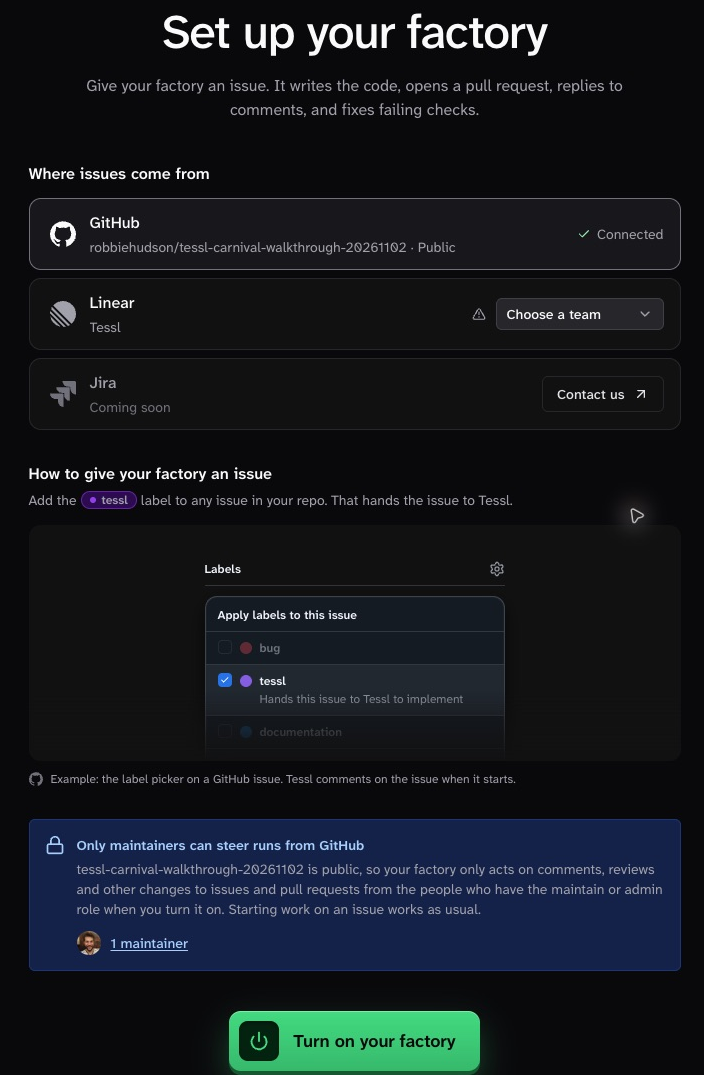
Tessl shows Preparing your factory, then Your factory is ready. The loops are on from that point.
5. Turn on Code Review
Code Review starts off. On Your factory is ready., choose Set up next to Code review:
- Choose Install on GitHub and install Tessl Review on the account that owns the repository.
- Under Choose when it reviews, keep After every update, so review checks each change the factory pushes and not only the first version. When opened or requested costs fewer credits.
- Choose Turn on code review.
If the dialog says Tessl Review is Installed on another account but it cannot see your repository, your organization's Tessl Review is on a different GitHub account. Give access on GitHub only helps when your repository belongs to that account. Otherwise, close the dialog and carry on without Code Review for now. The factory still works, and you review its pull requests yourself.
To set it up later, see Set up Tessl Code Review.
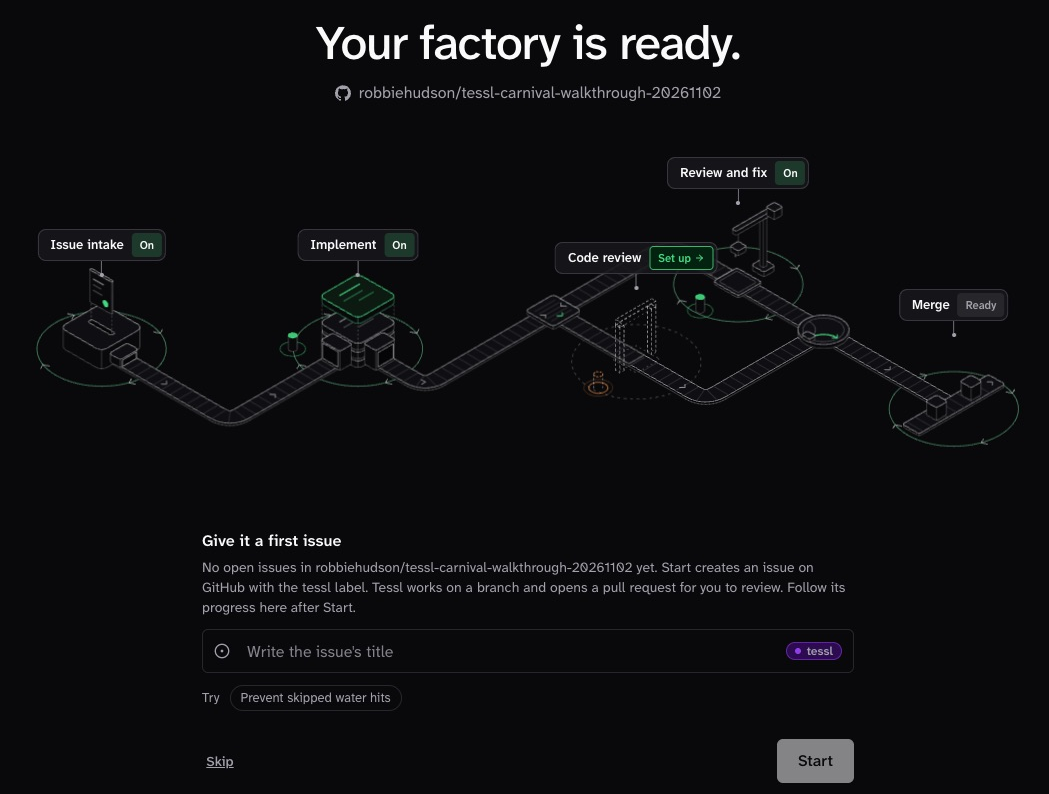
6. Hand it its first issue
Pick something small, so you see the whole loop quickly, for example "Put my name on the entrance sign".
- During setup: pick one of the repository's open issues and choose Send #N into the factory. Or, when the repository has no open issues, write a title and choose Start. Tessl creates the GitHub issue with the
tessllabel. The screen then follows the issue, with a link to the agent's log, until you choose Continue to factory floor. - Any time after: open the issue on GitHub and add the
tessllabel. The factory starts within about 90 seconds, so quick edits to the issue don't start several runs.
When the factory picks the issue up, it adds an eyes reaction to the issue. A small change usually reaches a pull request in a few minutes.
7. Follow the run
Open the project in Tessl. The Factory floor on its Overview lists the issue with its Stage:
- Writing code: the agent is working and hasn't opened a pull request yet.
- Needs you: the agent asked a question. Answer it on the issue, and it carries on.
- PR open: the pull request is up. Select it under Pull request to open it on GitHub.
- Problem: the run failed. Select the issue, then View run, to read why.
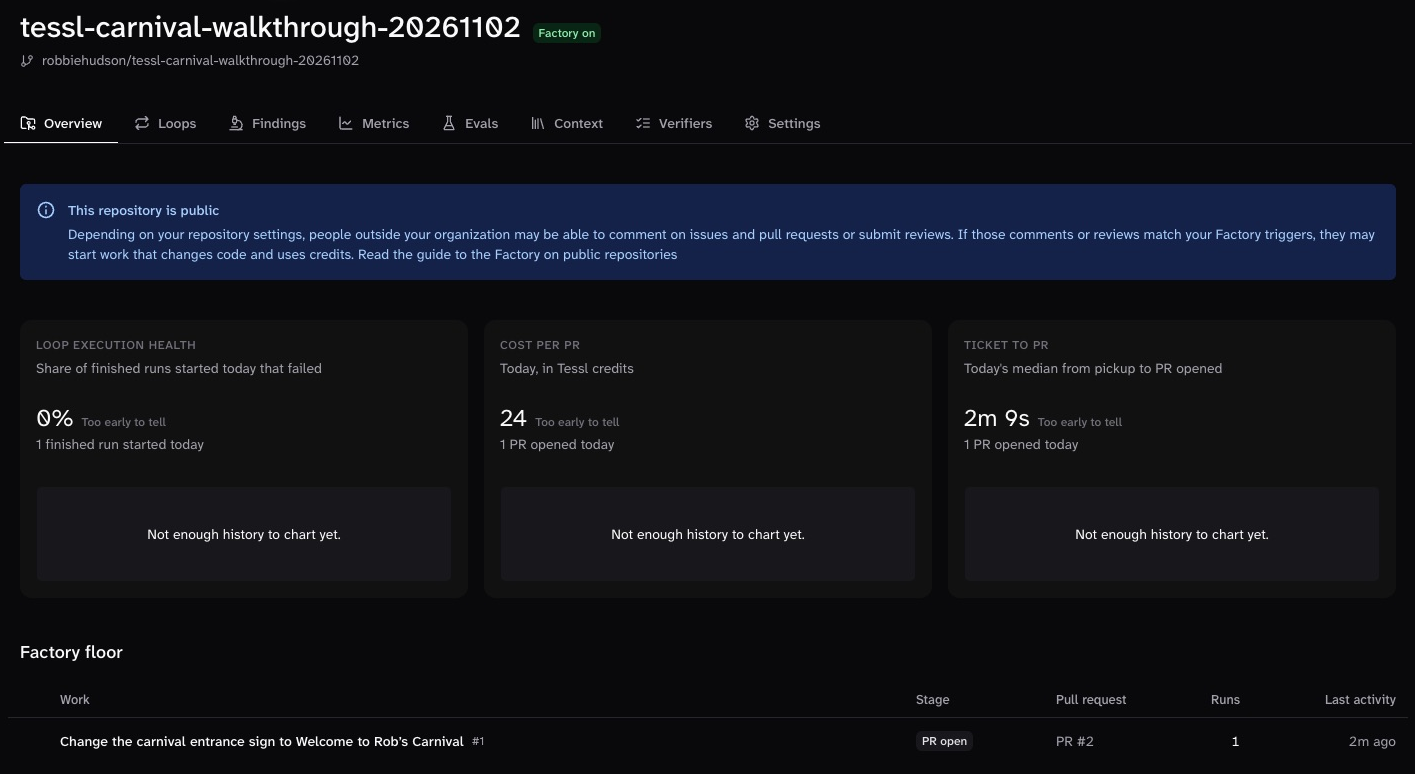
For every stage and run outcome, see Projects in the app.
8. Review and merge
Review the change yourself, the same way you'd review a teammate's. To ask for more, comment on the pull request. Shepherd PR adds an eyes reaction, pushes the change, and replies when it's done.
With Code Review on, Tessl Reviewer also leaves findings on the pull request. On a private repository, Shepherd PR answers them and fixes any failing checks. On a public repository it doesn't act on them by itself: comment to ask it to address the findings you agree with.
When you're happy, merge the pull request.
Check it worked
Your first factory is working when:
- the pull request the factory opened is merged, and
- the issue's row on the Factory floor shows PR merged.
Take work back or stop
- One issue: remove the
tessllabel. Follow ticket changes stops the work and comments on the issue: Stopped: the tessl label was removed, so Tessl cancelled its runs. To hand it back, add the label again. A pull request the factory already opened stays open. Close it if you don't want it. On a public repository, only a maintainer's label removal starts Follow ticket changes. If someone else removed the label, cancel the issue's runs as Cancel a run already in progress describes. - The whole factory: on the project's Loops tab, pause each loop from Loop actions. Pausing stops new runs, but a run that already started carries on until it finishes. The project heading still reads Factory on while its loops are paused, so check that each loop shows Paused. See Stop, remove, and move loops, which also covers canceling a run and turning off Code Review.
If nothing happens
If the issue hasn't been picked up after 5 minutes, check that:
- the issue has the
tessllabel, - Issues are turned on for the repository,
- the Tessl App can see the repository, under Manage repository access,
- your organization has credits left.
If runs start but fail before the agent writes any code, your repository may need dependencies installed first. See Cloud setup hook. For other problems, see Troubleshooting.
Set up from your coding agent
You can set up the same factory from a coding agent, such as Claude Code, Codex, or Cursor. On Build your software factory., choose Use your coding agent and follow its 3 steps:
-
Install the Tessl CLI:
On Windows, run
winget install tessl.tessl. -
Open your agent in the repository you want the factory on.
-
Paste the prompt Tessl gives you. It installs the
tessl-labs/factory-setupplugin withtessl install --global tessl-labs/factory-setup, then asks your agent to set up the factory.
The agent turns on the same loops and Code Review, and changes nothing in your repository. In the US, if Linear is connected and a Linear team is routed to the project, the agent takes issues from Linear instead of the tessl label. Its final message says which it chose. It asks only for what it can't decide, such as installing the 2 GitHub Apps. Keep the Tessl tab open: it updates once your agent signs in.
This route is available in the US region only for now, because the tessl-labs/factory-setup plugin isn't published in the EU region yet. In the EU, use the web app.
Next steps
- Learn from past work: have Tessl find the problems your factory keeps hitting and turn them into issues it builds.
- Cloud setup hook: install your repository's dependencies before each run, so the agent can build and test like your CI does.
- Automations overview: how loops, triggers, and runs fit together, and how to add your own.