
Projects in the app
Projects are visible at the organization level and in project-specific views.
Each Tessl project represents a repository, so the app can show the factory's work in that repository, its loops and metrics, and its eval history in one place. The factory is the set of Tessl agents that work on the repository for you, such as turning issues into pull requests and answering their reviews. Each agent is a loop, and each time a loop runs is a run.
Projects are stored in a workspace for permissions and compatibility, but appear in the organization that owns that workspace.
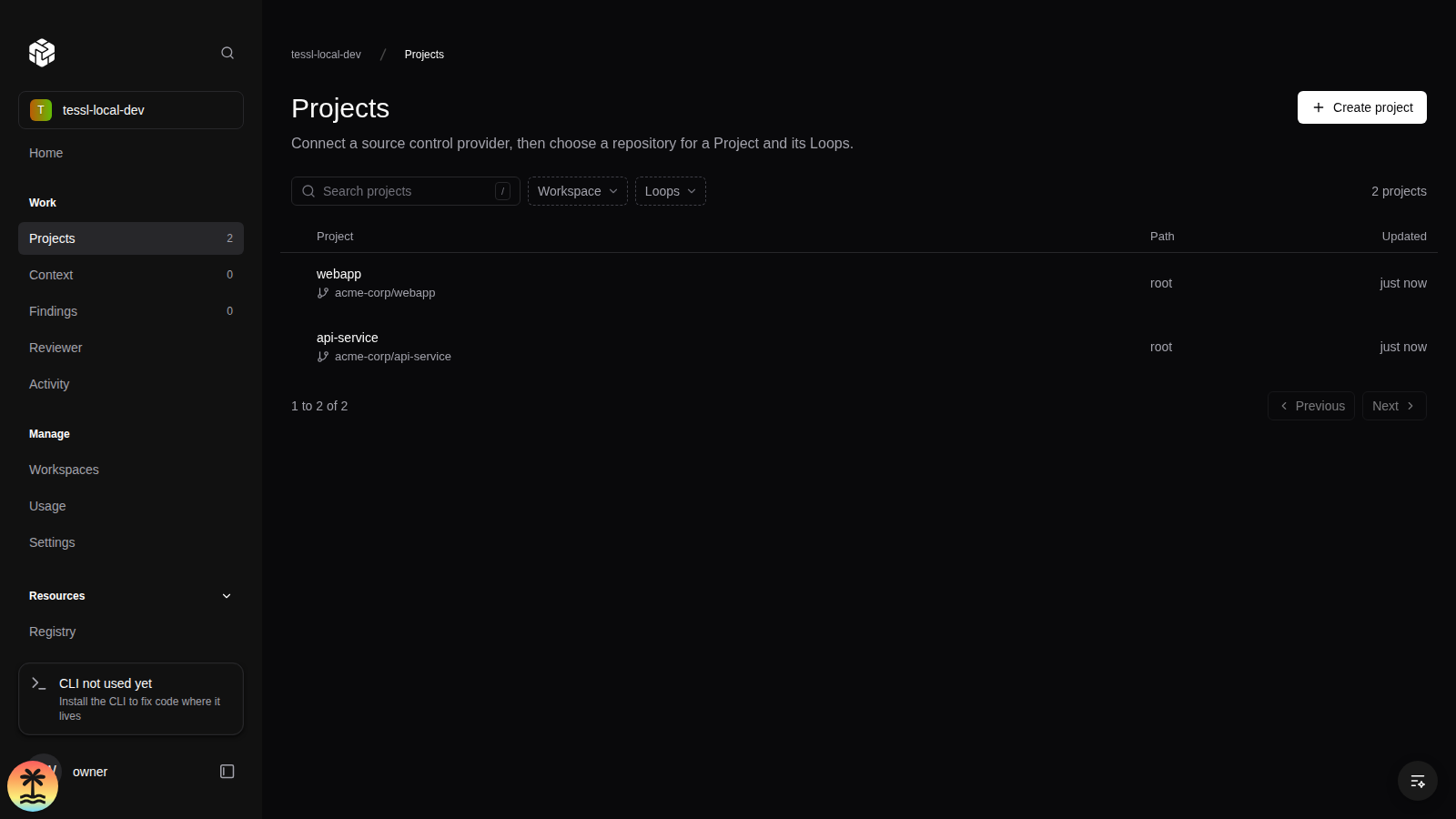
Organization Projects list
Use the Projects list to:
- Browse projects across your organization
- Search projects by name, repository, or path
- Filter to projects that have Loops set up, paused ones included
- Filter by workspace, when you can see more than one
- Open a project's detail view
Project tabs
A project's page has these tabs:
- Overview: the project's metrics and its Factory floor, the work the factory is doing in the repository
- Loops: the agents that each do one recurring job on the repository, and their runs
- Findings: issues the project's loops have found
- Metrics: how the factory is doing in the repository, from health to cost and quality
- Evals: project-level evaluation history
- Context: the skills and other agent context in the repository
- Verifiers: the verifiers configured in the repository, when verifiers are enabled for your organization
- Settings: project settings, when you can manage the project
Loops, Metrics, and the Factory floor appear only when the factory is enabled for your organization.
The heading shows Factory on when the project has at least one loop, and Inactive when it has none. A project with no loops shows a Set up your factory card on its Overview instead of the Factory floor.
Follow an issue on the Factory floor
The Factory floor lists each issue and pull request the factory has worked on in this repository, ordered by when its latest run started, newest first. Runs that finished with No change needed don't move a row up, and an issue or pull request whose runs all ended that way isn't listed. A run's links decide which row it joins, so the runs that open a pull request and the runs that answer its reviews share a row with the issue they were for.
To follow one issue from start to finish:
- Open the project and select Overview.
- Find the issue in the Factory floor table. Work shows the issue's title and its identifier, such as a Linear
ENG-123or a GitHub#42. Select the identifier to open the issue in Linear or GitHub. - Read Stage to see where the work is. The stages are listed below.
- Read Pull request for the pull request the factory opened for the issue. Select it to open it on GitHub.
- Select the title to open the issue's detail page, which shows every run for it.
- In History, select View run on a run to open its run page.
The table shows 10 rows. Select Show More to load 10 more, up to 100. It refreshes every minute while the page is open. A dot in the first column means a loop is running on that work now.
Each row has one of these stages:
- Needs you: a loop's latest run on this work is waiting for your answer. Open the run to read the question.
- Problem: a loop's latest run on this work failed. Open the run to read why.
- PR open: the factory has opened a pull request and it's still open.
- Writing code: a run is in progress and no pull request is open yet.
- No PR yet: the runs on this work have finished without opening a pull request.
- PR merged: every pull request for this work has merged.
- PR closed: every pull request for this work is closed, and at least one closed without merging.
When the work has more than one loop, only each loop's latest run counts toward Needs you and Problem. A failed run that a later run of the same loop recovered from doesn't hold the row at Problem. Once every pull request is merged or closed, the row shows PR merged or PR closed, whatever the runs say.
Read an issue's history
The issue's detail page shows its stage, links to the issue and to each pull request for it, and its History: every run, grouped by loop, with the loop that ran most recently first. A loop with multiple runs shows a timeline with one dot per run, colored by outcome.
Select Show N runs (where N is the number of runs) under a loop with multiple runs to list them. A loop with one run shows it directly. Each run shows its outcome, what started it, when it started, how long it took, and a View run link.
The outcomes are:
- Running: the run is in progress. The agent's latest status message appears next to it.
- Waiting for your answer: the agent asked a question and stopped. The question appears next to it and on the run page.
- Completed: the agent finished the work it was started for.
- No change needed: the agent finished and found nothing to change.
- Could not complete: the agent ran and reported that it couldn't finish the work.
- Run error: the run failed before the agent could finish, for example because of the platform, the environment, or credits.
- Canceled: the run was canceled.
A failed run is highlighted with the reason it recorded, and says when a later run of the same loop completed.
The page can also show these notices:
- Some work may be missing: the read stopped at its run limit, so counts and history can be incomplete.
- A pull request is linked to several tickets. Its ownership is unknown.: the runs that produced the pull request referenced more than one issue, so it isn't shown under any one of them.
- Some run links are not included.: a run had more links than were read.
Read a run
A run page shows what one run did. Its Overview shows details such as the trigger, agent, model, skill, environment, and the run's links, such as the pull request it produced. The details depend on the run. Its result shows the agent's reason, output, and any questions it asked. Logs has the run's logs and agent session, and Findings lists what the run found.
You can also reach a run from Loops: select a loop, then a run in its list.
Loops
The Loops tab lists the project's loops: the agents that each do one recurring job on the repository, such as turning issues into pull requests or reviewing them. Each row shows the loop's trigger, how many runs it has made, its last run, and its open findings. Select a loop to see its triggers, its runs, and their status and output. See Schedules for how loops are defined.
Factory metrics
The Overview shows today's Loop execution health, Cost per PR, and Ticket to PR, using UTC days. Here, Loop execution health is the share of finished runs started today that failed. The cards compare today with the previous 28 complete days when there is enough history; Too early to tell means today's sample is still too small.
The Metrics tab shows the full set below, grouped into Health, Usage, Speed, Cost, and Quality, for the last 7, 14, 30, or 90 days. Most metrics on this tab compare the selected period with the period of the same length just before it, and chart each UTC day. A factory pull request is one a run of this project produced.
Health
- Loop execution health: the runs the project's loops started in the period, by how each ended: running, completed, no changes needed, needs input, failed, or canceled. Select the card to list the runs.
- Failure rates: the share of finished runs that failed, whatever the cause, and the count by cause: platform, agent, setup, credits, limits, or policy. Select the card for the top reasons, a breakdown by loop and skill, and the failed runs.
- Platform failure rate: the share of finished runs that failed because of the Tessl platform. Failures caused by the agent, its setup, credits, limits, or policy don't count. Select the card to list the platform failures.
Usage
- Utilization: factory pull requests as a share of all pull requests opened in the repository. It counts the whole repository, even when the project covers only one subdirectory.
Speed
- Ticket to PR: the median time from the factory picking up an issue to opening its pull request. Pickup is the first run that references the issue. Pull requests with no issue are left out.
- Velocity: factory pull requests merged per week. An issue counts as finished when its first factory pull request merges.
Cost
- Cost per PR: the Tessl credits of finished runs that started in the period on factory pull requests, divided by the factory pull requests whose opening run is one of those runs. A run counts when it opened the pull request or is a follow-up that started before the pull request merged. A pull request opened in the period by a run that started earlier, or by a run still going, isn't in the count. A follow-up on a pull request whose opening run started in an earlier period adds to this period's credits but not to its pull request count, so the value isn't the full cost of any one group of pull requests. Select the card for the pull requests and a breakdown.
- Wasted tokens: Tessl credits spent on factory pull requests that closed without merging.
- Cost per skill: Tessl credits spent, by the skill each run used.
Quality
- Merge rate: of the factory pull requests that closed in the period, the share that merged.
Project verifiers
A project's Verifiers view shows the verifiers configured in its repository's tessl.json, and how the project conforms to them. Verifiers you generate in the app appear here once you add them to the repository and commit them. See Generate and review verifiers in the web UI.
Use the view to:
- See which verifiers apply to the project
- Check what each verifier enforces and which files it applies to
- Select Run check to see whether the project conforms to a verifier now, and which files violate it
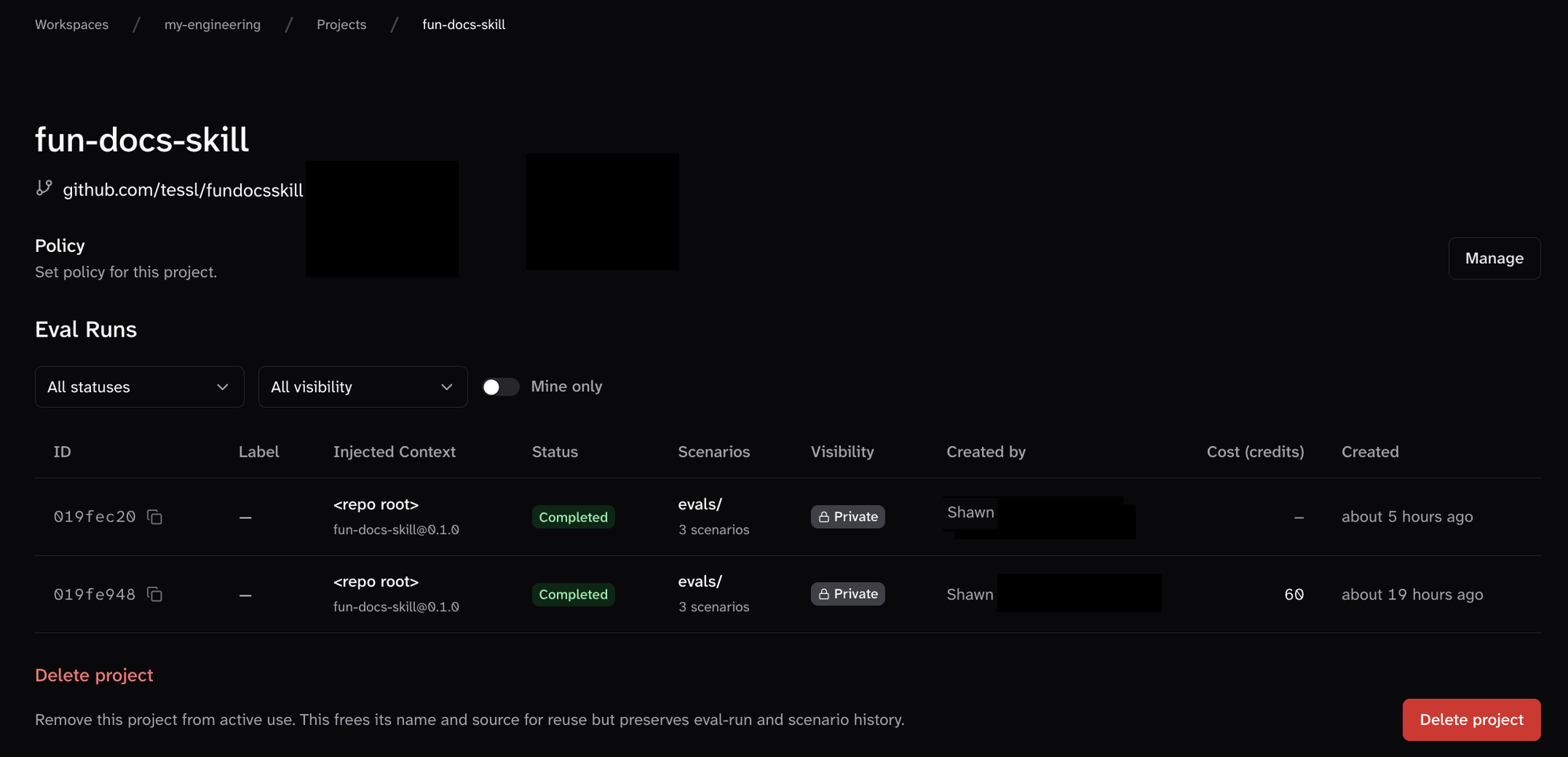
Project eval views
Each project has app views that show project-level evaluation history.
Use these views to:
- Inspect evaluation history over time
- Review results connected to the same repository
- Understand the state of evaluations for a codebase